 Tagloom
Getting AI Keywords into Lightroom, digiKam and darktable: A Step-by-Step Tutorial
Generating keywords is only half the job. They are useful once they show up in the software you actually
browse your photos with. Every catalog app reads XMP sidecars a little differently: some expect
IMG_0001.xmp, some IMG_0001.jpg.xmp, and some only read sidecars for RAW files.
This tutorial covers the exact setup for the most common apps, so the keywords land where you expect on the
first try.
Before you start: which app reads what
| Application | Reads sidecars for | Naming to choose in Tagloom |
|---|---|---|
| Lightroom Classic | Camera RAW files | Adobe style (IMG_0001.xmp) |
| Adobe Bridge | Camera RAW files | Adobe style (IMG_0001.xmp) |
| Capture One | Camera RAW files | Adobe style (IMG_0001.xmp) |
| digiKam | Every format (when enabled) | Full file name (IMG_0001.jpg.xmp) |
| darktable | Every format | Full file name (IMG_0001.jpg.xmp) |
Adobe apps ignore a sidecar next to a JPEG, TIFF, PSD or DNG; for those formats they only read metadata embedded inside the file. If your Lightroom library is mostly JPEG, use digiKam or darktable to view the keywords, or keep shooting RAW for the work you want tagged.
Part 1: Generate the sidecars in Tagloom
- Open Tagloom and go to Settings.
- Under Sidecar file name, choose Adobe style for Lightroom, Bridge or Capture One, or Full file name for digiKam or darktable, using the table above.
- Set Metadata language and Keywords per photo. English and 15 keywords are good defaults.
- Go to Library, click the add folder button and choose the folder you want to tag.
- Wait until the folder's progress bar is full, or until the photos you need show the green "Tagged" badge.
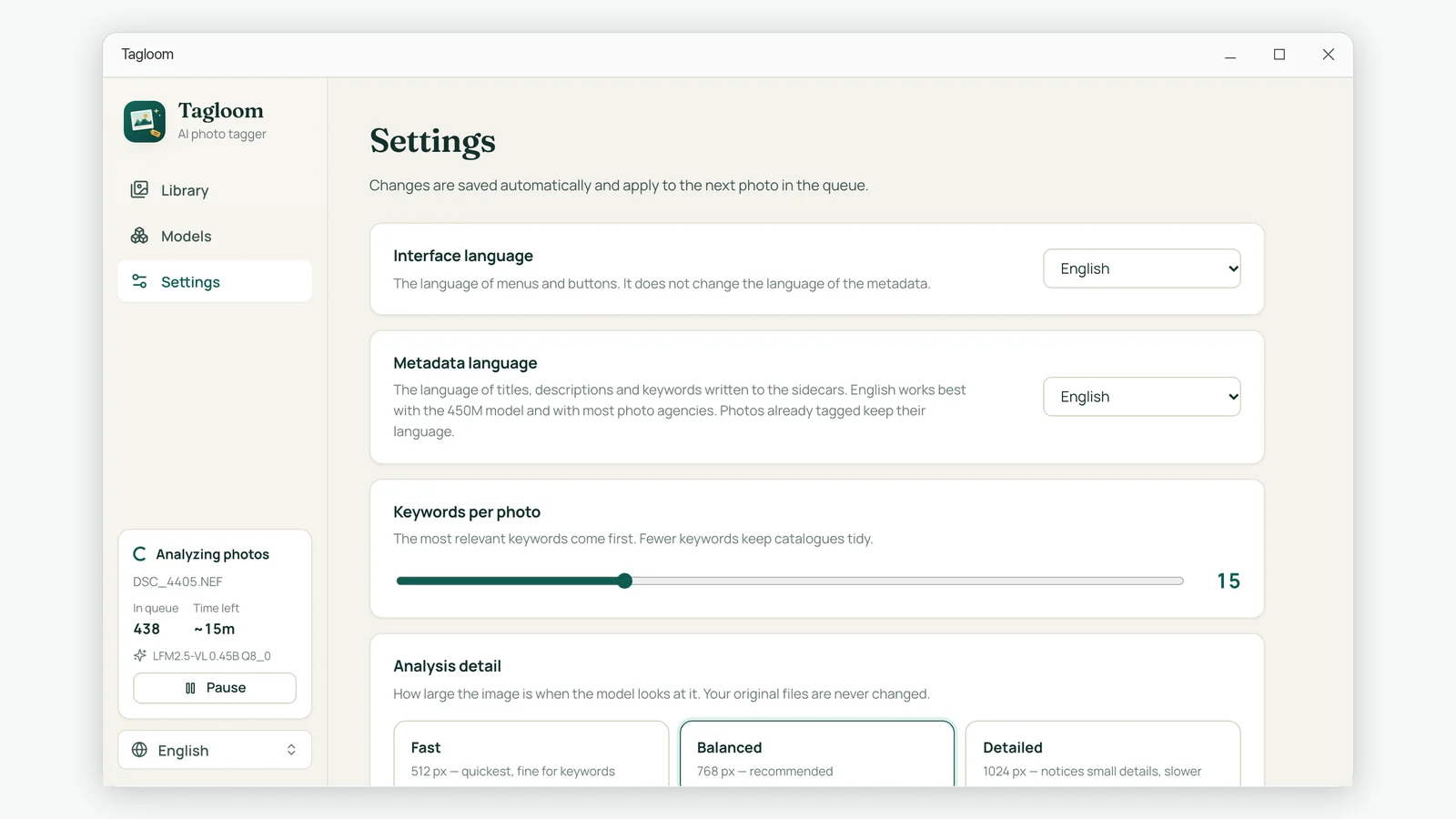
Choose the naming style before you add a folder. Photos that are already tagged keep their existing sidecar when you change the setting later; only photos still in the queue switch to the new name.
Part 2: Lightroom Classic
Photos you have not imported yet
- Tag the folder in Tagloom first.
- In Lightroom Classic, choose File › Import Photos and Video and import the folder as usual.
- Lightroom reads each RAW file's
.xmpsidecar during import. Select a photo and open the Keywording panel to see the keywords, and the Metadata panel for Title and Caption.
Photos already in your catalog
- In the Library module, select the tagged photos (for example, the whole folder).
- Choose Metadata › Read Metadata from Files.
- Confirm the dialog. Lightroom reloads title, caption and keywords from the sidecars.
Reading metadata from files replaces the catalog's metadata for the selected photos with what is on disk. If you have keyworded some of those photos inside Lightroom without saving metadata to files, select only the photos you have not touched.
Part 3: Adobe Bridge and Capture One
Adobe Bridge reads sidecars when it browses a folder. Navigate to the folder, select a RAW photo and open the Keywords and Metadata panels. If Bridge cached the folder earlier, use Tools › Cache › Purge Cache for Folder so it reads the new sidecars.
Capture One picks up XMP sidecars for RAW files when you import or browse a folder. The keywords appear in the Keywords tool and the caption in the Metadata tool. For images already in a catalog, use Image › Load Metadata on the selected images.
Part 4: digiKam
- Open Settings › Configure digiKam › Metadata and switch to the Sidecars tab.
- Enable Read from sidecar files.
-
If you chose the Adobe style naming in Tagloom, also enable the option that makes sidecar file names
compatible with commercial programs, so digiKam looks for
IMG_0001.xmp. - Select the tagged photos in the album and choose Item › Reread Metadata From File.
- The keywords now appear as tags in the right sidebar and are searchable from the tag filter.
Part 5: darktable
- Use Full file name naming in Tagloom so the sidecars are named
IMG_0001.jpg.xmp. - In darktable's lighttable, open the import module and choose add to library for the tagged folder.
- darktable reads each sidecar during import: keywords become tags and the title and description appear in the metadata editor.
From then on darktable maintains the sidecar itself, writing your edits into the same file. Tagloom recognizes that the file now belongs to another application and leaves it alone.
Troubleshooting
Keywords do not show up at all
- Check the file type. In Lightroom, Bridge and Capture One, sidecars are only read for RAW files.
- Check the naming. Open the folder in File Explorer:
IMG_0001.xmpversusIMG_0001.jpg.xmpmust match what the app expects. - Check that the photo is tagged. In Tagloom, filter the folder by Tagged; queued photos have no sidecar yet.
Some photos were skipped
Photos under the Has sidecar filter already had a sidecar written by another program, often Lightroom or darktable. Tagloom never modifies those files, so their existing metadata stays as it was.
A RAW and a JPEG of the same shot
With Adobe style naming, IMG_0001.CR3 and IMG_0001.JPG share one
IMG_0001.xmp. Tagloom analyzes the pair once and both point at the same sidecar. Choose the full
file name style if you want separate sidecars.
Summary
Pick the sidecar naming that matches your catalog app before you start, let Tagloom fill the folder, then import or re-read metadata in your app. Lightroom, Bridge and Capture One pick up keywords for RAW files; digiKam and darktable read them for every format.