 Tagloom
How to Find Old Photos on Windows When They Have No Tags
You know the photo exists. A black puppy on a wooden deck, a green bicycle against a weathered shed, sometime
around 2019. What you have is a drive full of folders named after dates and files named
IMG_2602.jpg. File Explorer's search box is no help, because nothing in the file says "puppy".
This guide starts with the quick tricks that work on any Windows PC today, then shows how to fix the root problem: photos that have never been described in words.
Why Windows search cannot find "the photo with the puppy"
Windows Search indexes file names, folder names, dates and some metadata stored inside files. A camera writes a lot of technical data into each photo (date taken, camera model, exposure, sometimes GPS), but nothing about what is in the picture. Unless someone added a title or keywords, there is simply no word "puppy" anywhere for search to match.
Quick wins with what Windows already has
1. Search by the date the photo was taken
If you remember roughly when, use the date. In File Explorer, open the archive folder, click in the search
box and type datetaken:2019 or a range such as datetaken:01/06/2019..31/08/2019
(use your regional date format). Switch the view to Large icons to scan the results.
2. Narrow by file type and camera
Combine terms to cut the noise: kind:picture datetaken:2019 excludes videos and documents. If
you used several cameras, sorting by the Camera model column (right-click a column header
to add it) quickly separates phone snapshots from camera shots.
3. Use folder names you already have
Most people organize by event or trip at least occasionally. Searching for wedding or
lisbon finds folders, not photos, but that is often enough to get within a few hundred frames.
These tricks work when you remember when or where. They fail completely for "what": the subject, the colors, the mood. That needs words attached to the photos.
The real fix: describe the archive once
The long-term solution is to give every photo a short description and a handful of keywords. Doing it by hand is weeks of work for a large archive, which is why it never happens. An on-device AI tagger can do it in the background instead, without uploading private family or client photos anywhere.
With Tagloom the process looks like this:
- Install Tagloom from the Microsoft Store and download a vision model on the Models page.
- Add your old photo folders. Subfolders are included, and nothing is moved or copied.
- Let it work. Each photo gets a title such as "Black puppy looking up from the deck", a one or two sentence description and around fifteen keywords.
- Search. Type a word into the search box on the Library page. Tagloom matches titles, descriptions, keywords and file names.
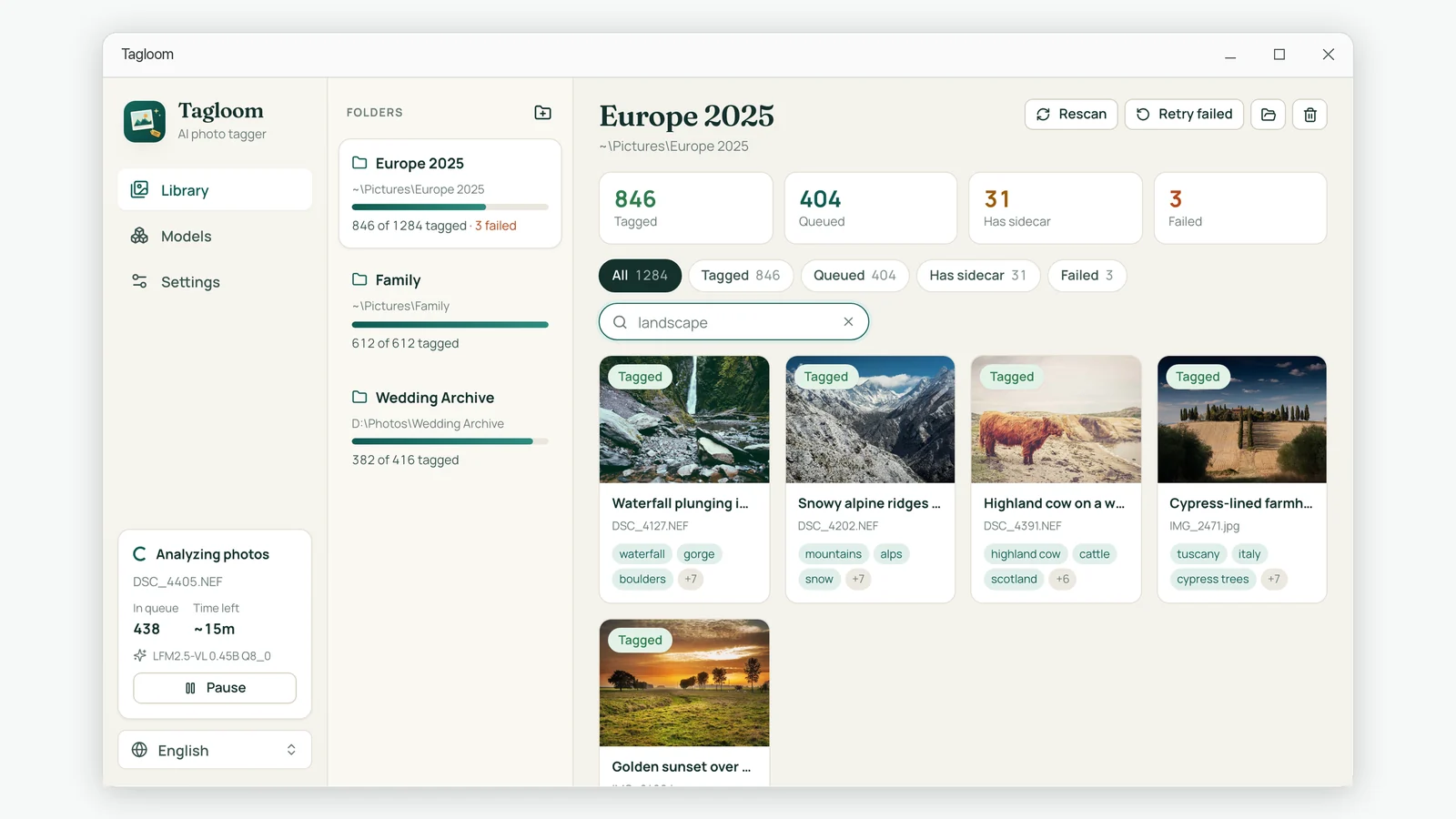
What to search for
Descriptive keywords open up searches you could never do with dates and folder names:
- Subjects: dog, bicycle, waterfall, windmill, bench
- Places by type: harbor, canal, old town, forest path, beach
- Light and season: sunset, golden hour, snow, autumn
- Mood and style: moody, vintage, macro, still life
Search for one distinctive word at a time: "windmill" narrows an archive far faster than "photo of a building". Search works inside the selected folder, so pick the year or trip first, then type the word.
Make the keywords useful beyond one app
Tagloom stores everything in standard XMP sidecar files next to the photos, so the work is not locked into one program. digiKam and darktable read the keywords for every photo, and Lightroom Classic, Bridge and Capture One read them for camera RAW files. If you later move to a full catalog application, the descriptions come with you.
Note that File Explorer itself does not read sidecar files, so the keywords will not appear in Explorer's search. Use Tagloom's search, or a catalog app that reads XMP, to search by content.
Keep it from happening again
- Keep one archive root. A single
Pictures\Archivefolder with year subfolders is easier to watch than photos scattered across drives. - Turn on folder watching. Tagloom rescans watched folders periodically and tags new photos automatically.
- Add the context AI cannot know. Names, clients and events are worth typing yourself. Open the photo in Tagloom, add the keyword and save.
- Back up the sidecars with the photos. They are tiny text files; make sure your backup includes them.
Summary
Dates and folder names will get you close when you remember when something happened. To find photos by what
is in them, the archive needs words. Describing it once with an on-device AI tagger, and keeping those words
in XMP sidecars, turns years of IMG_xxxx.jpg into a library you can actually search.